Back to Plesk
Follow these steps to upload files using the Plesk File Manager.
1. Log in to your Plesk account.
2. Click on Files from the Sidebar Menu.

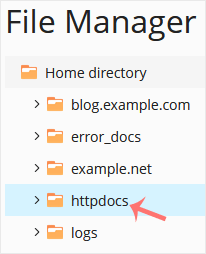
3. Under File Manager, enter the httpdocs directory.
4. Click on the plus icon and choose Upload. Then select the file you want to upload from your computer.
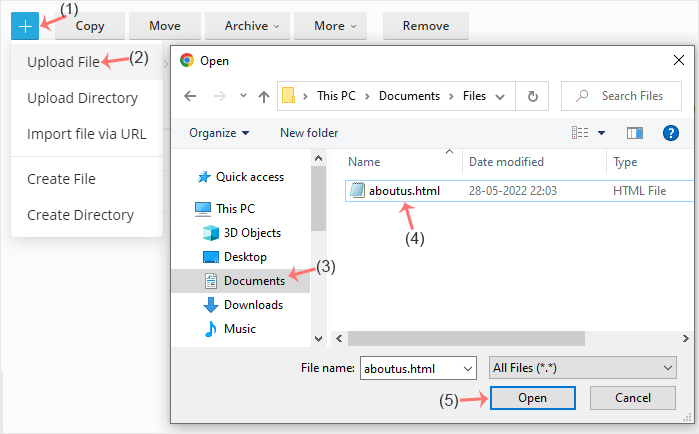
5. Click Open.
Tips: You can select multiple files. Press and hold down the CTRL key on the keyboard and click on the files you want to select.