Back to Cloudflare (cPanel)
1. Log in to your cPanel account.
2. In the Software section, click on Cloudflare.

3. Click on Sign in Here to access your Cloudflare account.

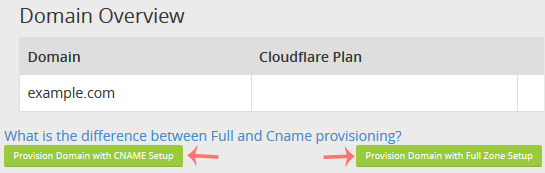
4. Under Domain Overview, it shows two options. CNAME Setup and Full Zone Setup.
CNAME Setup: You do not need to point DNS nameservers to Cloudflare. This makes it easier for you.
Full Zone Setup: You must change your domain nameservers to Cloudflare DNS.
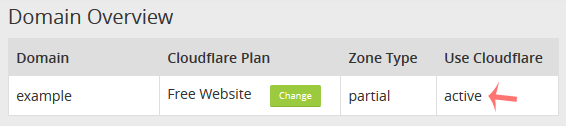
For CNAME Setup: If you choose CNAME Setup, it will be activated immediately on your domain.
For Full Zone Setup: It will display nameservers, which you need to set on your domain name.
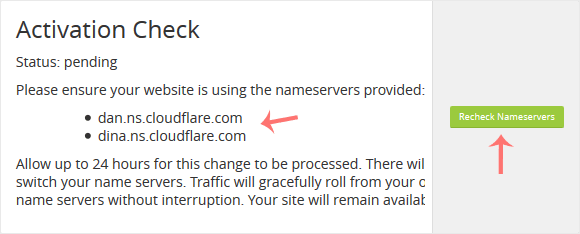
After updating your domain nameservers, wait for a few hours. Log in again to your Cloudflare account and click on Recheck Nameservers.